
Why Is Yahoo My Search Engine on Chrome?
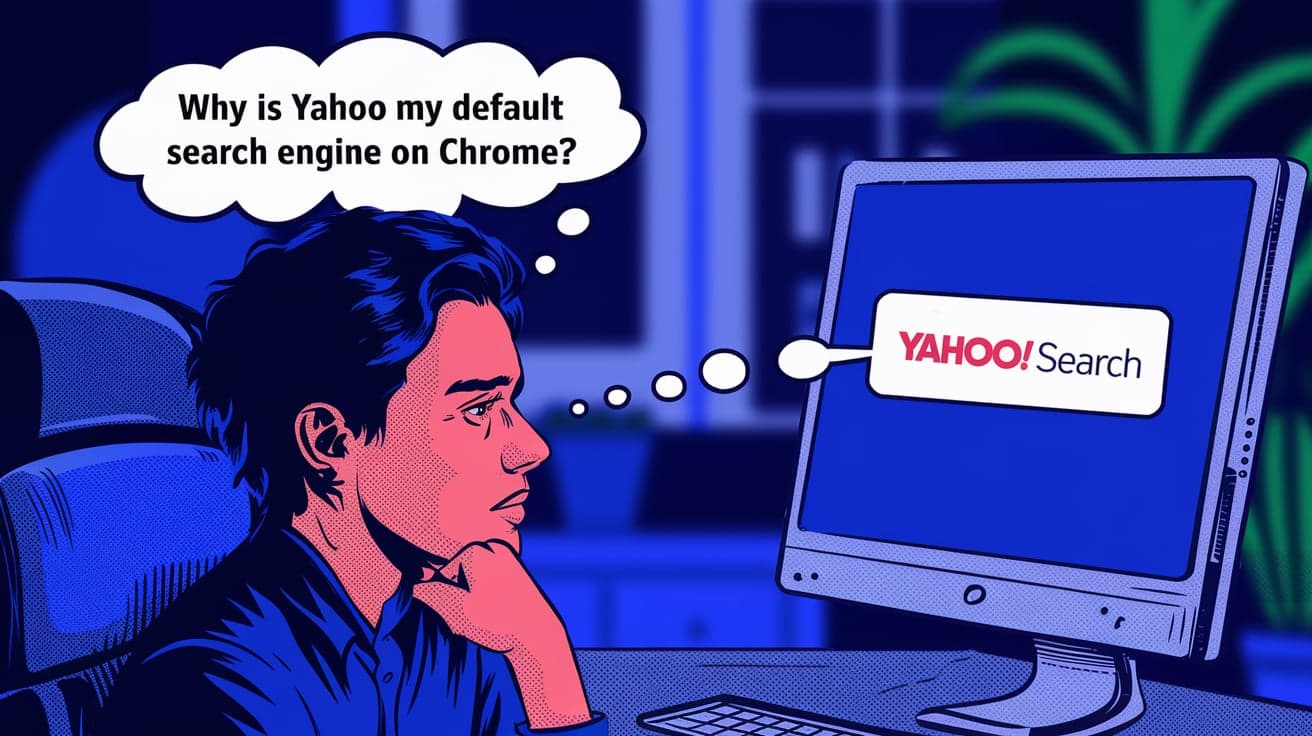
You open Chrome to search for something, expecting to use Google or your preferred search engine. But suddenly, Yahoo takes over as your default search engine. Sound familiar? This unexpected switch can be frustrating, especially if you didn’t intentionally change your settings. The truth is, there are several reasons why this happens, and most of them have simple solutions.
In this article, I’ll explain why Yahoo might be your search engine on Chrome, what’s causing it, and how to fix it. Whether it’s a browser hijacker, a default setting, or something else, I’ll walk you through everything step by step so you can get back to using the search engine you prefer.
Why Yahoo Becomes Your Default Search Engine
There are several reasons why Yahoo might suddenly become your default search engine on Chrome. Let’s break them down:
1. Accidental Changes in Settings
It’s easy to accidentally change your search engine while browsing Chrome’s settings or installing new extensions. Some extensions even request permission to adjust search engine settings during installation.
2. Browser Hijackers
Browser hijackers are a common reason for unwanted search engine changes. These are types of malware that alter browser settings, including the default search engine, often without your knowledge. They can redirect your searches to Yahoo (or other search engines) to generate ad revenue for the attackers.
3. Software Bundles
When downloading free software, some programs bundle additional tools or settings changes. If you don’t pay attention to the installation steps, you might unknowingly allow the software to set Yahoo as your search engine.
4. Workplace or Organization Settings
If you’re using a Chrome browser managed by your workplace or school, they might have set Yahoo as the default search engine for specific reasons. In this case, you won’t be able to change it without administrator permission.
How to Check If Your Search Engine Changed
Before jumping to fixes, confirm that Yahoo is indeed set as your default search engine. Here’s how:
Step 1: Open Chrome Settings
Click the three-dot menu in the top-right corner of Chrome.
Select Settings from the dropdown menu.
Step 2: Navigate to the Search Engine Section
In the left-hand menu, click Search engine.
Check what’s listed under Search engine used in the address bar.
Step 3: Manage Search Engines
Click Manage search engines and site search to view all available search engines.
If Yahoo is listed as the default, you’ll see it marked with a label.
How to Remove Yahoo as the Default Search Engine
If you didn’t choose Yahoo as your search engine, follow these steps to remove it:
Step 1: Change the Default Search Engine
Open Settings > Search engine > Manage search engines and site search.
Find your preferred search engine (e.g., Google).
Click the three dots next to it and select Make default.
Step 2: Remove Yahoo from the List
In the same menu, locate Yahoo under “Search engines.”
Click the three dots next to it and choose Remove from list.
Step 3: Reset Chrome Settings (Optional)
If the above steps don’t work, resetting Chrome can restore default settings:
Go to Settings > Reset settings > Restore settings to their original defaults.
Confirm the action.
How to Identify and Remove Browser Hijackers
If Yahoo keeps coming back as your search engine, a browser hijacker might be to blame. Here’s how to detect and remove it:
Step 1: Run a Malware Scan
Use a trusted antivirus program to scan your computer for malware. Free tools like Malwarebytes can detect and remove browser hijackers.
Step 2: Check Chrome Extensions
Open Settings > Extensions or type
chrome://extensions/in the address bar.Look for suspicious or unfamiliar extensions.
Click Remove for any extensions you don’t recognize or trust.
Step 3: Clear Cache and Cookies
Sometimes, clearing your browser data can help:
Go to Settings > Privacy and security > Clear browsing data.
Select Cookies and other site data and Cached images and files, then click Clear data.
Step 4: Reset Chrome
If all else fails, resetting Chrome can remove hijackers:
- Go to Settings > Reset settings > Restore settings to their original defaults.
Preventing Future Search Engine Changes
Here are some tips to avoid similar issues in the future:
Read Installation Prompts Carefully:
When installing software, always choose the “Custom” or “Advanced” installation option. This allows you to deselect bundled programs that might change your browser settings.Use Trusted Extensions:
Only download Chrome extensions from the official Chrome Web Store and check user reviews before installing.Install an Ad Blocker:
Ad blockers can prevent malicious ads that might lead to hijacker infections.Keep Chrome Updated:
Regular updates ensure you have the latest security features to protect against threats.Enable Sync:
Syncing Chrome with your Google account makes it easier to recover settings if something goes wrong.
Conclusion
If Yahoo suddenly becomes your default search engine in Chrome, it’s likely due to accidental changes, browser hijackers, or bundled software. The good news is that it’s easy to fix. Start by checking and adjusting your search engine settings. If Yahoo keeps reappearing, scan for malware, review your extensions, and clear your browser data. Taking these steps will help you regain control and prevent similar issues in the future.
Remember, understanding why this happens is just as important as fixing it. By staying vigilant during software installations and regularly reviewing your browser settings, you can keep your Chrome experience hassle-free.
FAQs
Why does Yahoo keep showing up as my search engine?
Yahoo might appear due to accidental changes, bundled software, or browser hijackers. It’s often caused by malware or extensions.
How do I permanently remove Yahoo from Chrome?
Go to Settings > Search engine > Manage search engines, then remove Yahoo from the list. If it keeps coming back, scan for malware and reset Chrome.
Can I stop browser hijackers from changing my settings?
Yes, you can prevent hijackers by installing antivirus software, being cautious with downloads, and only using trusted extensions.
Is Yahoo a bad search engine?
No, Yahoo is a legitimate search engine. However, if it appears without your consent, it might indicate an issue with your Chrome settings or malware.
Will resetting Chrome delete my bookmarks?
No, resetting Chrome won’t delete bookmarks, but it will remove extensions, cookies, and other browser data. You can back up bookmarks before resetting if needed.
Also read -
how to turn off pop up blocker on mac on chrome
how to save passwords on chrome
how to stop google chrome pop ups




