
How to Turn On Cookies on iPad Chrome
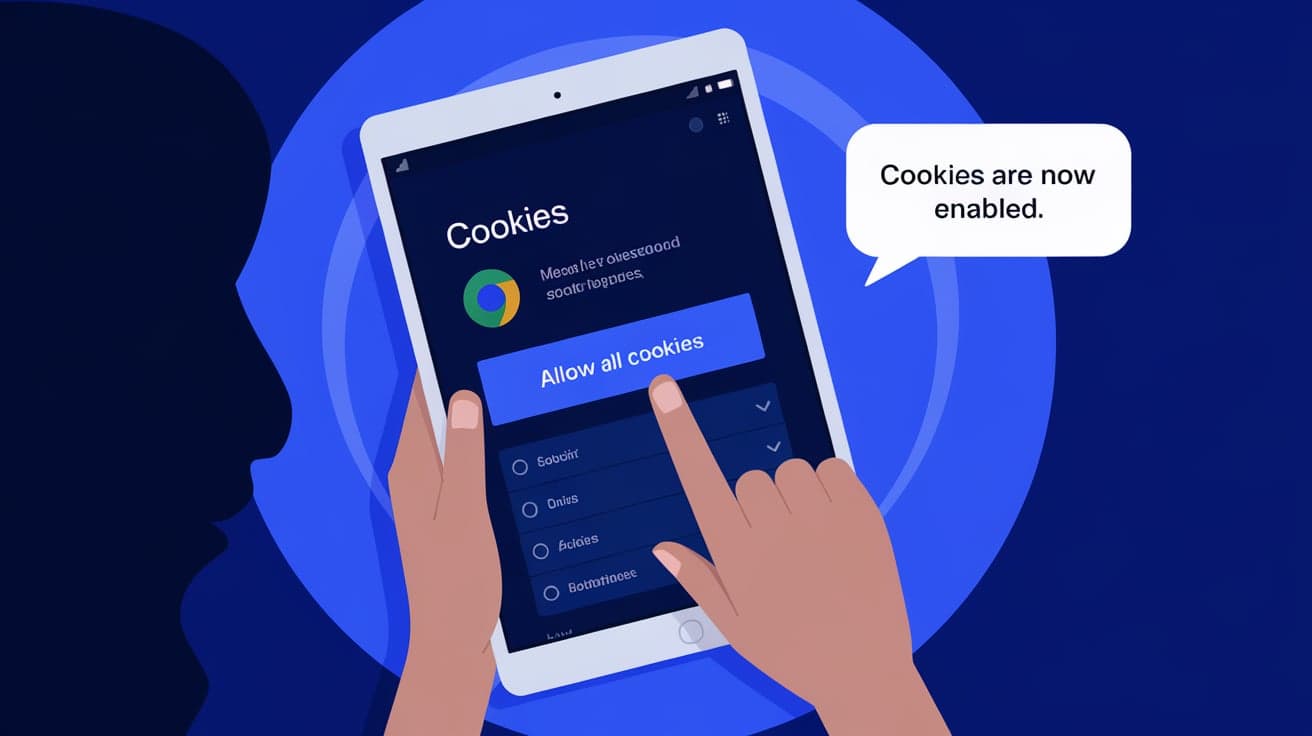
You’re browsing the web on your iPad, trying to access a website or log in to your account, but something isn’t working right. One common cause? Cookies might be disabled in your Chrome browser. Cookies are tiny files stored on your device that help websites remember your preferences, login details, and browsing history. Without them, many websites won’t function properly.
In this guide, I’ll show you exactly how to turn on cookies in Chrome on your iPad. Whether you’re troubleshooting a login issue, fixing a website error, or just want to enjoy a smoother browsing experience, these steps will help you get everything set up correctly.
What Are Cookies and Why Are They Important?
Cookies are small files that websites save on your device to improve your browsing experience. They store information like login credentials, shopping cart items, and user preferences.
Why Enable Cookies?
Smooth Browsing: Cookies help websites load faster and function properly.
Save Preferences: Websites remember your settings and preferences.
Stay Logged In: Cookies keep you logged into your accounts, saving you the hassle of re-entering your details every time.
If cookies are disabled, you might face issues like pages not loading correctly or websites repeatedly asking you to log in.
How to Turn On Cookies in Chrome on Your iPad
Enabling cookies on Chrome for iPad is a straightforward process. Follow these steps to ensure cookies are active:
Step 1: Open Chrome Settings
Launch the Chrome app on your iPad.
Tap the three-dot menu (usually in the top-right corner).
Scroll down and select Settings.
This will take you to Chrome’s main settings page, where you can customize your browsing preferences.
Step 2: Navigate to Privacy Settings
In the Settings menu, tap on Privacy and Security.
Look for the option labeled Cookies and site data.
This is where you control how Chrome handles cookies.
Step 3: Enable Cookies
Ensure that the option to Allow cookies is toggled on.
If you see additional settings like Block third-party cookies, make sure it’s off if you want all cookies enabled.
Once you’ve made these changes, Chrome will start saving cookies, allowing websites to remember your preferences and function properly.
Adjusting Cookie Preferences
If you don’t want to enable all cookies, you can customize how Chrome handles them.
Allow Specific Websites to Use Cookies
In the Privacy and Security section, look for Site Settings.
Tap Cookies and site data.
Add specific websites to the Allowed list to enable cookies only for those sites.
This option is perfect if you want to keep cookies off for most sites but allow them for trusted ones.
What Happens When Cookies Are Disabled?
When cookies are turned off, you might notice these common issues:
Login Problems: Websites won’t remember your login details, requiring you to log in every time.
Missing Preferences: Sites won’t save your preferences, like language or region settings.
Shopping Cart Issues: Items in your cart may disappear when you navigate away from the page.
Enabling cookies can solve these problems and make browsing much smoother.
Managing Cookies Safely
While cookies are essential for a seamless browsing experience, managing them responsibly is important for your privacy and security.
Clear Cookies Regularly
Cookies can accumulate over time, taking up space and potentially slowing down your browser. To clear them:
Go to Settings > Privacy and Security > Clear Browsing Data.
Select Cookies and site data and tap Clear Data.
This is a good habit to adopt every few months.
Block Third-Party Cookies
Third-party cookies are often used for tracking and targeted ads. To block them:
Go to Cookies and site data in Chrome’s settings.
Toggle on Block third-party cookies.
This keeps your browsing more private while still allowing essential cookies.
Troubleshooting Common Issues
If enabling cookies doesn’t resolve your issue, here are some additional troubleshooting tips:
Problem 1: Website Still Doesn’t Work
Clear your browser’s cache: Settings > Privacy and Security > Clear Browsing Data.
Restart the Chrome app to apply your changes.
Problem 2: Cookies Keep Turning Off
Check if parental controls or third-party apps are overriding your settings.
Ensure you’re using the latest version of Chrome by updating the app through the App Store.
Problem 3: Privacy Concerns
Use Incognito Mode for browsing sessions where you don’t want cookies saved.
Consider installing privacy-focused extensions that give you more control over tracking.
Summary
Turning on cookies in Chrome on your iPad is a simple but essential step for hassle-free browsing. Cookies help websites remember your preferences, keep you logged in, and provide a smoother overall experience. By following the steps outlined in this guide, you can easily enable cookies and customize how Chrome handles them.
Remember to manage cookies responsibly by clearing them periodically and blocking third-party cookies when privacy is a concern. With the right settings in place, you’ll enjoy a seamless browsing experience without compromising your security.
FAQs
How do I check if cookies are enabled in Chrome on my iPad?
Go to Settings > Privacy and Security > Cookies and site data in the Chrome app. Ensure the option to allow cookies is turned on.
Can I enable cookies for specific websites only?
Yes, you can add trusted sites to the Allowed list in the Cookies and site data settings.
Will enabling cookies slow down my browser?
No, cookies improve performance by saving site data locally, which speeds up page loading times.
How do I clear cookies on Chrome for iPad?
Go to Settings > Privacy and Security > Clear Browsing Data, select Cookies and site data, and tap Clear Data.
Are cookies a privacy risk?
Cookies themselves aren’t harmful, but third-party cookies can track your browsing. Blocking third-party cookies can improve privacy while keeping essential cookies active.
Also read -
how to inspect element on chrome




