
How to Turn Off Incognito Mode on iPad Chrome
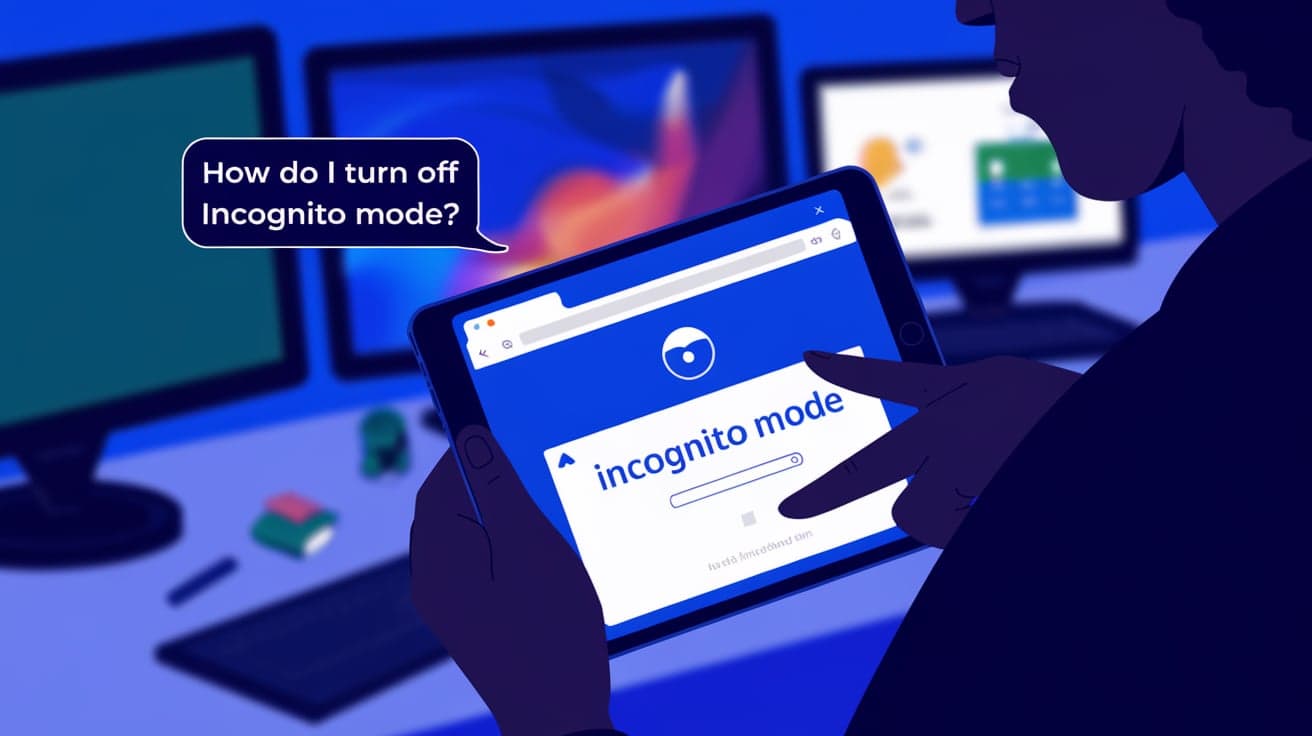
Incognito mode in Chrome is a great tool when you want to browse privately, but there are times when you might want to disable or exit it. Whether you’re trying to ensure your kids don’t use it to bypass parental controls or you simply want to get back to normal browsing, knowing how to turn off incognito mode on your iPad is essential.
In this guide, I’ll explain how to exit incognito mode, manage its usage, and even explore ways to prevent it altogether on Chrome for iPad. By the end, you’ll have all the tools to control how incognito mode works on your device.
What Is Incognito Mode and Why Disable It?
Incognito mode allows you to browse without saving your history, cookies, or login details. While it’s convenient, there are situations where disabling or exiting it becomes necessary.
Reasons to Disable Incognito Mode
Parental Controls: Prevent children from hiding their browsing activity.
Restore Normal Browsing: Exit private mode to return to standard browsing.
Track Activity: Ensure that history and cookies are saved for reference.
Now that you understand why, let’s look at how to turn it off.
How to Exit Incognito Mode on iPad Chrome
The quickest way to turn off incognito mode is to exit it entirely.
Steps to Exit Incognito Mode:
Open Chrome on your iPad.
Tap the tab switcher icon (square icon with a number or two overlapping squares) in the top-right corner.
You’ll see two sections: Regular Tabs and Incognito Tabs.
Tap the X on each incognito tab to close them individually.
Once all incognito tabs are closed, you’ll automatically return to normal browsing.
Quick Tip:
Make sure no incognito tabs are left open to fully exit private mode.
How to Disable Incognito Mode Using Screen Time
If you want to prevent the use of incognito mode altogether, you can use iOS’s Screen Time feature.
Steps to Disable Incognito Mode:
Open the Settings app on your iPad.
Tap Screen Time and enable it if it’s not already turned on.
Set up a Screen Time Passcode for added security.
Go to Content & Privacy Restrictions and toggle it on.
Under Web Content, select Limit Adult Websites.
What Happens?
- When Limit Adult Websites is enabled, it restricts access to incognito mode in Chrome because this feature is often associated with unmonitored browsing.
Managing Tabs to Avoid Incognito Mode
Sometimes, accidental activation of incognito mode happens. Managing your tabs wisely can help you avoid this:
Tips for Better Tab Management:
Stick to Regular Tabs: Always check if you’re in incognito mode by looking for the dark theme and the incognito icon.
Bookmark Important Pages: Save your frequently visited sites in normal mode to reduce the need for private browsing.
Clear Normal Browsing Data: If privacy is a concern, manually clear your history or use Chrome’s settings to automate this process.
Using Third-Party Tools to Block Incognito Mode
Third-party parental control apps can help block incognito mode completely. These apps provide additional features to monitor and manage browsing activities.
Recommended Tools:
Qustodio: Allows you to block private browsing across multiple devices.
Bark: Monitors online activities and restricts incognito usage.
Mobicip: Provides a comprehensive suite for parental controls, including incognito blocking.
These tools are particularly useful for parents looking to ensure safe and transparent browsing for their children.
Troubleshooting Issues with Incognito Mode
If you encounter problems while trying to turn off or disable incognito mode, here are some solutions:
Issue 1: Incognito Tabs Keep Reopening
Close all incognito tabs completely.
Restart Chrome to ensure it launches in regular browsing mode.
Issue 2: Screen Time Restrictions Not Working
Ensure that Screen Time is set up with a passcode.
Double-check the Web Content settings to confirm Limit Adult Websites is enabled.
Issue 3: Incognito Mode Is Not Visible
- This usually means it’s already disabled through Screen Time or third-party tools.
Why You Should Control Incognito Mode
While incognito mode is a helpful feature, controlling its use ensures better management of browsing activities, especially on shared devices like iPads.
Key Benefits of Managing Incognito Mode:
Transparency: Helps track browsing habits for accountability.
Parental Control: Prevents kids from bypassing content filters.
Safe Browsing: Reduces the risk of accessing inappropriate or harmful content.
Summary
Turning off incognito mode on Chrome for iPad can be as simple as closing all incognito tabs or using features like Screen Time to disable it entirely. By managing your tabs effectively or using third-party tools, you can maintain better control over your browsing experience.
Whether you’re a parent ensuring safe browsing for your child or simply prefer more transparency in your browsing, the steps outlined in this guide will help you manage incognito mode efficiently.
FAQs
Can I permanently disable incognito mode on Chrome for iPad?
Yes, you can use the Screen Time feature on iOS to restrict incognito mode by enabling Limit Adult Websites under Web Content.
How do I know if I’m in incognito mode?
In incognito mode, Chrome switches to a dark theme, and a small incognito icon (hat and glasses) appears in the top-left corner.
Does closing all incognito tabs turn off incognito mode?
Yes, once all incognito tabs are closed, Chrome will return to normal browsing mode.
Are there any apps to block incognito mode?
Yes, apps like Qustodio, Bark, and Mobicip can block incognito mode and provide additional parental control features.
Is incognito mode completely private?
No, while incognito mode doesn’t save your browsing history or cookies locally, your activity may still be visible to websites, your internet provider, or network administrators.
Also read -
how to view source code in chrome




