
How to Share Bookmarks from Chrome
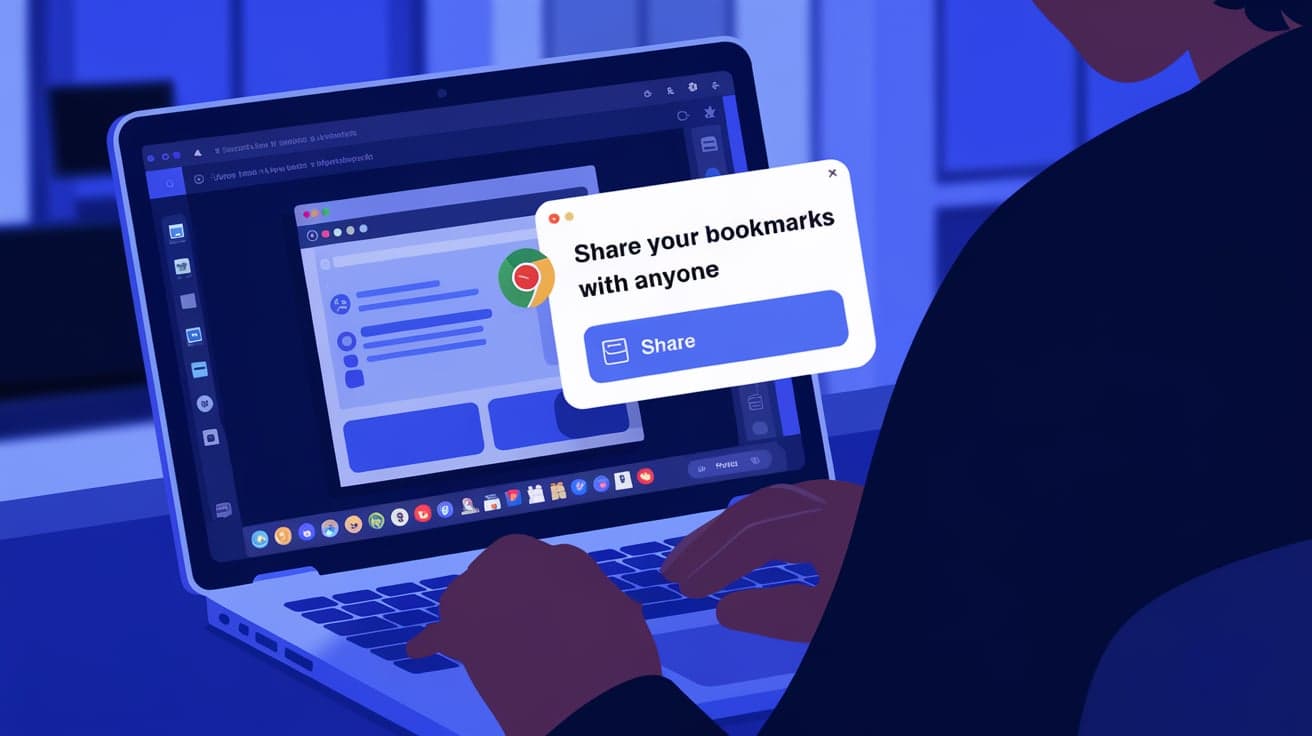
Bookmarks in Chrome are an easy way to save and organize your favorite websites. But what happens when you need to share those bookmarks with someone else? Whether it’s a friend, coworker, or your own devices, Chrome makes it simple to export, sync, or share your bookmarks with others.
In this guide, I’ll explain several methods to share bookmarks from Chrome. By the end, you’ll know how to share individual bookmarks, export an entire folder of bookmarks, and even sync them across devices.
Why Share Bookmarks?
Sharing bookmarks can save time and make collaboration easier. Here’s why you might want to share bookmarks:
Collaborate Efficiently: Share research links or project-related websites with coworkers.
Plan Trips or Events: Share travel itineraries, restaurant options, or event pages with friends.
Access Across Devices: Ensure all your bookmarks are available on multiple devices or accounts.
Backup Your Bookmarks: Exporting and sharing bookmarks creates a backup in case you lose them.
No matter the reason, Chrome provides several tools to make sharing bookmarks quick and easy.
How to Share Bookmarks Individually
Sometimes you only need to share a single bookmark with someone. Here’s how:
1. Copy the Bookmark Link
Open Chrome and go to your bookmarks bar.
Right-click the bookmark you want to share and select Copy URL.
Paste the link into a message or email to share it.
2. Share Directly from the Website
Open the website you want to share.
Click the Share icon (a box with an arrow pointing up) or copy the URL from the address bar.
Send the link via email, messaging apps, or social media.
This method is best for quick, one-time sharing of individual bookmarks.
How to Share a Folder of Bookmarks
If you’ve organized bookmarks into folders, you can share the entire folder:
1. Export the Folder
Open Chrome and click the three-dot menu in the top-right corner.
Go to Bookmarks > Bookmark Manager.
Locate the folder you want to share and right-click it.
Select Export to save the folder as an HTML file.
2. Send the Exported File
Save the exported file to your computer.
Attach the file to an email or upload it to a cloud service like Google Drive.
Share the file with the recipient.
3. Import the Folder
The recipient can import the file into their browser by:
Opening Bookmark Manager in Chrome.
Clicking the three-dot menu and selecting Import Bookmarks.
Choosing the shared HTML file.
This method is great for sharing large collections of bookmarks.
How to Sync Bookmarks Across Devices
If you’re sharing bookmarks between your own devices, syncing them with your Google account is the easiest option.
1. Sign In to Chrome
Open Chrome and click the profile icon in the top-right corner.
Sign in with your Google account.
2. Enable Sync
Go to Settings > You and Google > Sync and Google services.
Toggle on Sync everything or customize the sync settings to include bookmarks.
3. Access Bookmarks on Other Devices
Sign in to Chrome with the same Google account on another device.
Your bookmarks will automatically sync and appear in the bookmarks bar.
This method ensures you always have access to your bookmarks, no matter which device you’re using.
How to Share Bookmarks Using Extensions
Chrome extensions can make sharing bookmarks even easier.
1. Install a Bookmark Sharing Extension
Visit the Chrome Web Store and search for extensions like Raindrop.io or Bookmark Manager and Viewer.
Click Add to Chrome to install the extension.
2. Share Through the Extension
Use the extension’s tools to organize and share bookmarks.
Many extensions allow you to generate a public or private link to share bookmark collections.
Extensions offer advanced features, like categorization and collaborative editing, making them ideal for professional or team use.
Sharing Bookmarks on Mobile Chrome
If you use Chrome on your phone or tablet, you can still share bookmarks easily.
1. Share Individual Bookmarks
Open Chrome and tap the three-dot menu in the bottom-right corner.
Go to Bookmarks and locate the one you want to share.
Tap the bookmark, open the website, and share the link using your phone’s share menu.
2. Sync Bookmarks with Your Google Account
Sign in to Chrome with your Google account on your mobile device.
Enable sync under Settings > Sync and Google services.
Access your synced bookmarks on any device.
This method is perfect for sharing bookmarks between your phone and other devices.
Tips for Sharing Bookmarks Efficiently
Organize Before Sharing: Group similar bookmarks into folders for easier navigation.
Use Descriptive Names: Rename bookmarks so recipients understand their purpose at a glance.
Choose the Right Format: Export bookmarks as an HTML file for larger collections, or share individual links for quick collaboration.
Test Before Sharing: Ensure exported files or shared links work correctly before sending them.
Use Collaborative Tools: For group projects, consider tools like Google Docs or Notion to share and discuss bookmarks.
Troubleshooting Bookmark Sharing Issues
1. Bookmarks Not Syncing
If bookmarks don’t sync between devices:
Ensure you’re signed in with the same Google account on all devices.
Check sync settings under Settings > Sync and Google services.
2. Export File Not Importing
If the HTML file doesn’t import:
Make sure it’s an exported bookmarks file from Chrome.
Try importing it into another browser to check for file corruption.
3. Shared Links Not Working
If shared links don’t open:
Verify the URL by testing it in a new tab.
Ensure the website is live and not restricted by firewalls.
Benefits of Sharing Bookmarks
Streamlined Collaboration: Quickly share resources with coworkers, friends, or clients.
Backup Your Favorites: Exporting bookmarks ensures you won’t lose them if your browser data is erased.
Access Anywhere: Syncing bookmarks with your Google account allows you to use them across devices effortlessly.
Conclusion
Sharing bookmarks from Chrome is a convenient way to collaborate, organize, and access your favorite websites. Whether you’re sharing a single link, an entire folder, or syncing bookmarks across devices, Chrome offers multiple methods to suit your needs.
By following this guide, you can confidently share bookmarks in a few simple steps. Keep your bookmarks organized and updated to make sharing even more efficient.
FAQs
How do I share bookmarks with another person?
Export your bookmarks as an HTML file using Bookmark Manager and share the file via email or cloud storage.
Can I sync bookmarks across multiple devices?
Yes, sign in to Chrome with your Google account and enable sync under Settings > Sync and Google services.
How do I share a single bookmark?
Right-click the bookmark, select Copy URL, and paste the link into a message or email.
What if my bookmarks don’t sync?
Ensure you’re signed in to the same Google account on all devices and check your sync settings.
Are there extensions for sharing bookmarks?
Yes, tools like Raindrop.io or Bookmark Manager and Viewer allow you to organize and share bookmarks easily.
Also read -
how to block ads on chrome android




