
How to Save Tab Groups in Chrome
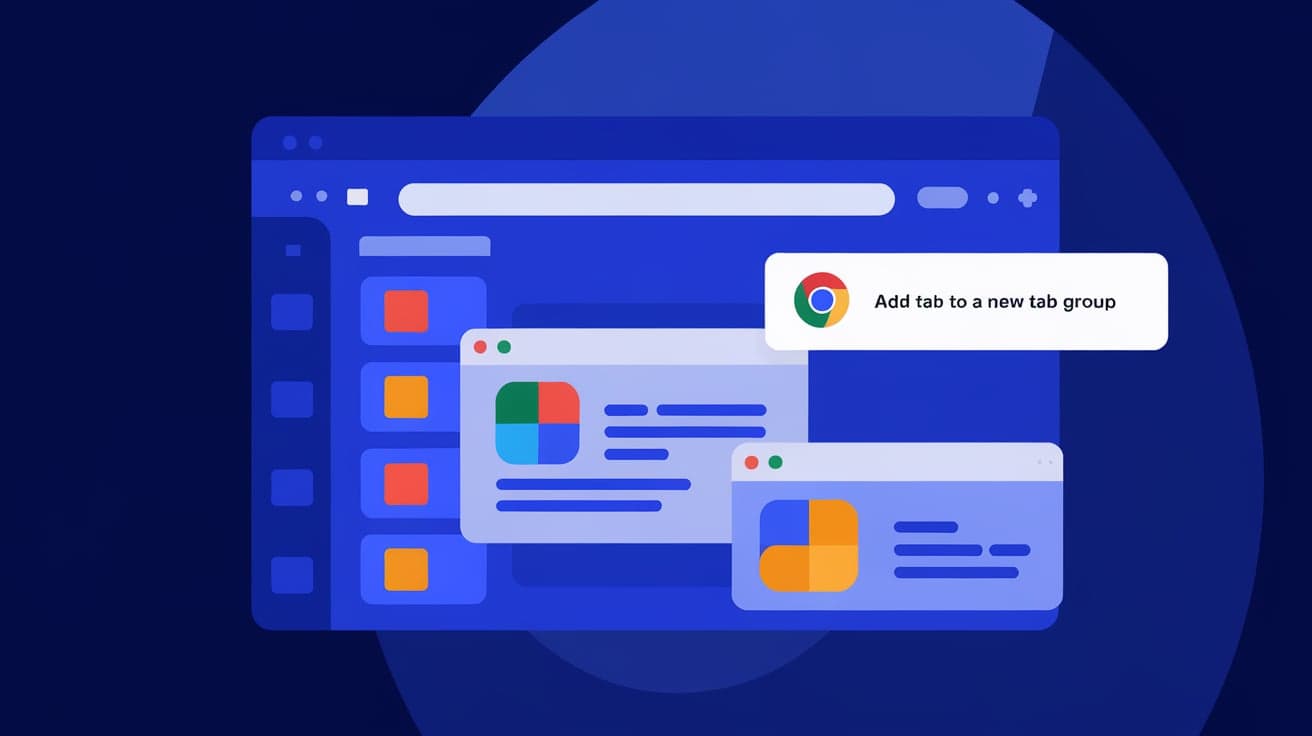
If you’re like me, juggling multiple tabs in Chrome can quickly get out of hand. Maybe you’re researching a project, planning a trip, or just trying to stay organized while browsing—you end up with tabs scattered everywhere. Thankfully, Chrome offers a feature called Tab Groups, which makes managing and saving tabs much easier. With Tab Groups, you can bundle related tabs together, color-code them, and even save them for later use.
In this guide, I’ll walk you through everything you need to know about saving Tab Groups in Chrome, so you can keep your browsing tidy and stress-free.
Why Use Tab Groups in Chrome?
Tab Groups in Chrome are perfect for organizing your workflow or keeping related tabs together. For instance, if you’re working on a school project, you can group tabs for research, spreadsheets, and writing tools. Or, if you’re planning a vacation, you can organize tabs for flights, hotels, and itineraries into one neat group.
This feature isn’t just about aesthetics—it also boosts productivity. By bundling related tabs together, you can focus better and switch between tasks without hunting through dozens of open tabs. Plus, saving these groups ensures you don’t lose your progress, even if you need to close Chrome or restart your computer.
Step-by-Step Guide to Saving Tab Groups
Saving Tab Groups in Chrome is easy once you know the steps. Here’s how you can do it:
1. Create a Tab Group
Before you save anything, you need to create a Tab Group:
Open a few tabs you want to group together.
Right-click on one of the tabs and select Add Tab to Group.
Choose New Group to create a fresh group or select an existing group.
Name the group and pick a color for it.
2. Add More Tabs to the Group
To add more tabs to your group:
Drag and drop a tab into the group, or
Right-click a tab, select Add Tab to Group, and pick the desired group.
3. Save Your Tab Group
Here’s the crucial step: saving the group so it reopens later. Chrome automatically remembers your Tab Groups if you enable this feature:
Go to Settings in Chrome by clicking the three-dot menu in the top-right corner.
Navigate to On startup.
Select Continue where you left off.
This option ensures Chrome saves your Tab Groups and reopens them next time you launch the browser.
4. Reopen Saved Tab Groups Manually
If you accidentally close a Tab Group, you can manually reopen it:
Click the three-dot menu in Chrome.
Go to History.
Look for your closed Tab Group under Recently Closed, and click to reopen it.
Advanced Tip: Use Chrome Extensions for Better Tab Management
While Chrome’s built-in Tab Groups feature is helpful, it has limitations. If you want to take your organization to the next level, consider using a tab management extension like:
Toby for Chrome: Great for saving and organizing tabs into collections.
Workona: Perfect for managing workspaces with multiple Tab Groups.
These tools let you save Tab Groups permanently and access them across devices with added flexibility.
Why Save Tab Groups?
Saving Tab Groups in Chrome offers several practical benefits:
Avoid Losing Important Tabs: You don’t have to worry about losing work if Chrome crashes or your system restarts.
Seamless Continuity: Pick up right where you left off, even after closing Chrome.
Boosted Productivity: Stay organized and reduce distractions by grouping related tabs.
Personalization: Add a splash of color to your browser with customized group labels.
By saving your groups, you can declutter your browsing experience and focus on what matters most.
Troubleshooting Common Issues
Sometimes, saving and managing Tab Groups doesn’t go as planned. Here’s how to fix common problems:
1. Tab Groups Disappear After Closing Chrome
If your Tab Groups don’t reappear when you reopen Chrome, make sure you’ve selected the Continue where you left off option in Settings.
2. Tabs Won’t Stay in a Group
If tabs keep jumping out of their group, it might be a glitch. Try restarting Chrome or updating the browser to the latest version.
3. Accidentally Closed a Tab Group
Check your browser history to find and restore closed Tab Groups.
4. Groups Don’t Save on Mobile
Tab Groups aren’t fully supported on mobile versions of Chrome, so this feature is currently limited to desktop browsers.
Tips to Make the Most of Tab Groups
Want to get the best out of Tab Groups in Chrome? Here are some tips:
Use Short and Clear Names: Avoid confusion by naming groups like “Work,” “Shopping,” or “Research.”
Color-Code Strategically: Use colors to quickly identify groups at a glance. For example, blue for work and red for personal tabs.
Close Unused Tabs: If a group is no longer needed, close it to keep your browser clutter-free.
Pin Groups: Pin tabs within a group to save even more space on your tab bar.
Summary
Tab Groups in Chrome are a game-changer for anyone looking to organize their browsing experience. By creating, managing, and saving Tab Groups, you can streamline your tasks, avoid losing important tabs, and stay productive.
Saving Tab Groups ensures you always pick up right where you left off, even if you need to close Chrome or restart your computer. Plus, with added tools like Chrome extensions, you can take your tab management to the next level. Start grouping your tabs today and experience the difference in your workflow!
FAQs
How do I save my Tab Groups permanently in Chrome?
To save your Tab Groups, enable Continue where you left off in Chrome’s settings. This will automatically reopen your Tab Groups when you restart the browser.
Can I use Tab Groups on Chrome mobile?
Tab Groups are not fully supported on Chrome mobile yet. However, you can still organize tabs into groups for the current session.
Why are my Tab Groups disappearing after I close Chrome?
This could happen if you don’t have Continue where you left off enabled in your Chrome settings. Check your settings to ensure this option is turned on.
Can I save Tab Groups across different devices?
Tab Groups don’t sync across devices natively. However, extensions like Workona or Toby can help you save and manage groups across multiple devices.
Are Tab Groups available in all versions of Chrome?
Tab Groups are available in the latest versions of Chrome on desktop. Make sure your browser is updated to access this feature.
Also read -




