
How to Pin Google Chrome to Taskbar
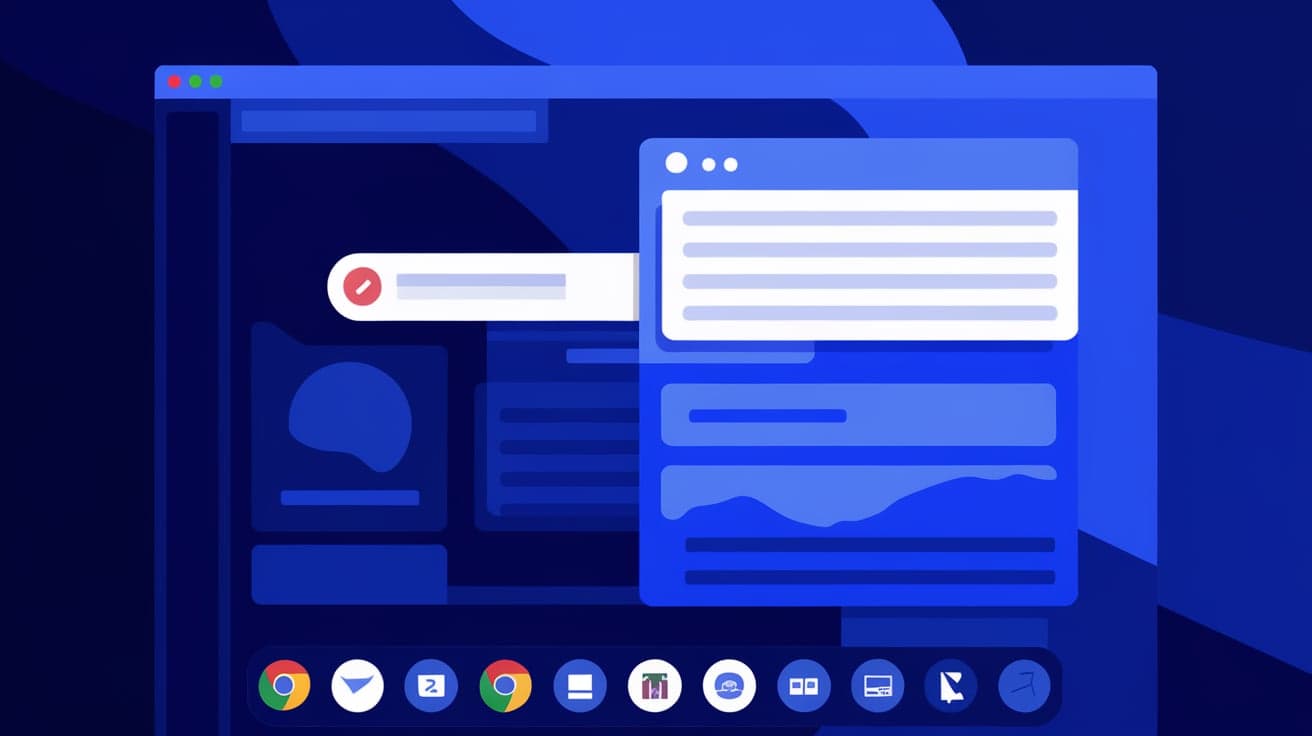
Accessing your favorite apps quickly can make your day much more productive, and pinning Google Chrome to your taskbar is one way to achieve that. With just one click, you can open your browser without searching through menus or your desktop. Whether you’re on Windows or macOS, pinning Chrome to the taskbar keeps it within easy reach.
In this guide, I’ll walk you through the simple steps to pin Google Chrome to your taskbar and troubleshoot any potential issues.
What Does It Mean to Pin Google Chrome to the Taskbar?
Pinning Google Chrome to your taskbar means adding a shortcut to the bar at the bottom of your screen (or side, depending on your setup). This shortcut stays visible even when other apps are open, allowing you to launch Chrome quickly. It’s especially useful if Chrome is one of your most-used applications.
Benefits of pinning Chrome to your taskbar include:
Faster access to the browser.
A cleaner desktop with fewer shortcuts.
The ability to launch Chrome with just one click.
How to Pin Google Chrome to Taskbar on Windows
Pinning Google Chrome to the taskbar on a Windows computer is straightforward. Follow these steps:
Step 1: Open Google Chrome
Start by launching Google Chrome on your Windows PC.
If Chrome isn’t already installed, download and install it from the official website.
Step 2: Locate the Chrome Icon on the Taskbar
Once Chrome is open, you’ll see its icon on the taskbar at the bottom of your screen.
Step 3: Pin Chrome to the Taskbar
Right-click the Chrome icon on the taskbar.
From the menu that appears, select Pin to taskbar.
The Chrome icon will now stay on your taskbar even after you close the browser. Clicking it will open Chrome instantly.
How to Pin Google Chrome to Taskbar on macOS
Pinning Chrome to the taskbar on macOS works a little differently since macOS uses the Dock instead of a taskbar. Here’s how to pin Chrome to your Dock:
Step 1: Open Chrome
Open Google Chrome from your Applications folder or Spotlight search.
If you don’t have Chrome installed, download it from the official website.
Step 2: Find Chrome in the Dock
Once Chrome is open, its icon will appear in your Dock at the bottom of your screen.
Step 3: Pin Chrome to the Dock
Right-click (or Control-click) the Chrome icon in the Dock.
Select Options from the menu.
Click Keep in Dock.
This will ensure the Chrome icon remains in the Dock even when the browser is closed.
How to Pin Google Chrome to Taskbar on Windows 11
If you’re using Windows 11, the process for pinning Chrome is slightly updated due to the new design of the taskbar:
Step 1: Open Chrome
Launch Google Chrome from your Start menu or desktop shortcut.
Step 2: Pin Chrome to the Taskbar
Right-click the Chrome icon on the taskbar.
Select Pin to taskbar.
Alternatively, you can pin Chrome without opening it:
Click the Start menu and search for Google Chrome.
Right-click Chrome in the search results and select Pin to taskbar.
How to Pin Google Chrome to Taskbar on Windows 10
If you’re using Windows 10, follow these steps:
Step 1: Open Chrome
Launch Google Chrome from your desktop or Start menu.
Step 2: Pin Chrome to Taskbar
Right-click the Chrome icon on the taskbar.
Choose Pin to taskbar from the menu.
Alternatively:
Search for Chrome in the Start menu.
Right-click it and select Pin to taskbar.
How to Pin a Specific Website to the Taskbar Using Chrome
Pinning Chrome is useful, but you can also pin specific websites to your taskbar for even quicker access. Here’s how:
Step 1: Open the Website
Launch Chrome and navigate to the website you want to pin.
Step 2: Create a Shortcut
Click the three-dot menu in the top-right corner of Chrome.
Go to More tools and select Create shortcut.
Name the shortcut and check the box for Open as window if you want the site to open in its own window.
Step 3: Pin to Taskbar
Locate the shortcut on your desktop.
Drag it to the taskbar or right-click it and select Pin to taskbar.
Now you can open the website directly from your taskbar.
Troubleshooting Taskbar Pinning Issues
If you’re having trouble pinning Chrome to the taskbar, try these solutions:
Problem 1: Chrome Icon Disappears After Closing
- Fix: Make sure you select Pin to taskbar by right-clicking the Chrome icon on the taskbar while it’s open.
Problem 2: Pin Option Not Available
- Fix: Ensure Chrome is installed correctly. Reinstall Chrome from the official website if needed.
Problem 3: Multiple Chrome Icons Appear
- Fix: Unpin duplicate icons by right-clicking them and selecting Unpin from taskbar.
Why Pinning Chrome to the Taskbar is Useful
Pinning Chrome to the taskbar saves time and improves your workflow. Instead of searching for Chrome in the Start menu or desktop, you can access it with a single click. If you frequently browse the web or use web-based tools, having Chrome pinned to your taskbar ensures quick and easy access.
Conclusion
Pinning Google Chrome to your taskbar or Dock is a simple but effective way to streamline your workflow. Whether you’re on Windows or macOS, the steps are easy to follow and take just a few moments. You can even go a step further and pin specific websites for instant access to your favorite pages. With these tips, you’ll save time and keep your desktop or Dock organized.
FAQs
How do I unpin Google Chrome from the taskbar?
Right-click the Chrome icon on the taskbar and select Unpin from taskbar. This will remove it from the taskbar but won’t uninstall Chrome.
Can I pin Chrome to the taskbar without opening it?
Yes, search for Google Chrome in the Start menu (Windows) or Applications folder (macOS), then right-click and choose Pin to taskbar or Keep in Dock.
Why does Chrome disappear from my taskbar when I close it?
You may not have selected Pin to taskbar. Make sure to right-click the Chrome icon while it’s open and choose Pin to taskbar.
Can I pin multiple Chrome profiles to the taskbar?
Yes, open a profile in Chrome, right-click its icon on the taskbar, and select Pin to taskbar. Repeat for additional profiles.
How do I pin a website to the taskbar using Chrome?
Use the Create shortcut option in Chrome’s menu under More tools, then drag the shortcut to the taskbar or right-click it and select Pin to taskbar.
Also read -
how to screenshot on a chromebook




