
How to Get Out of Incognito Mode on iPad Chrome
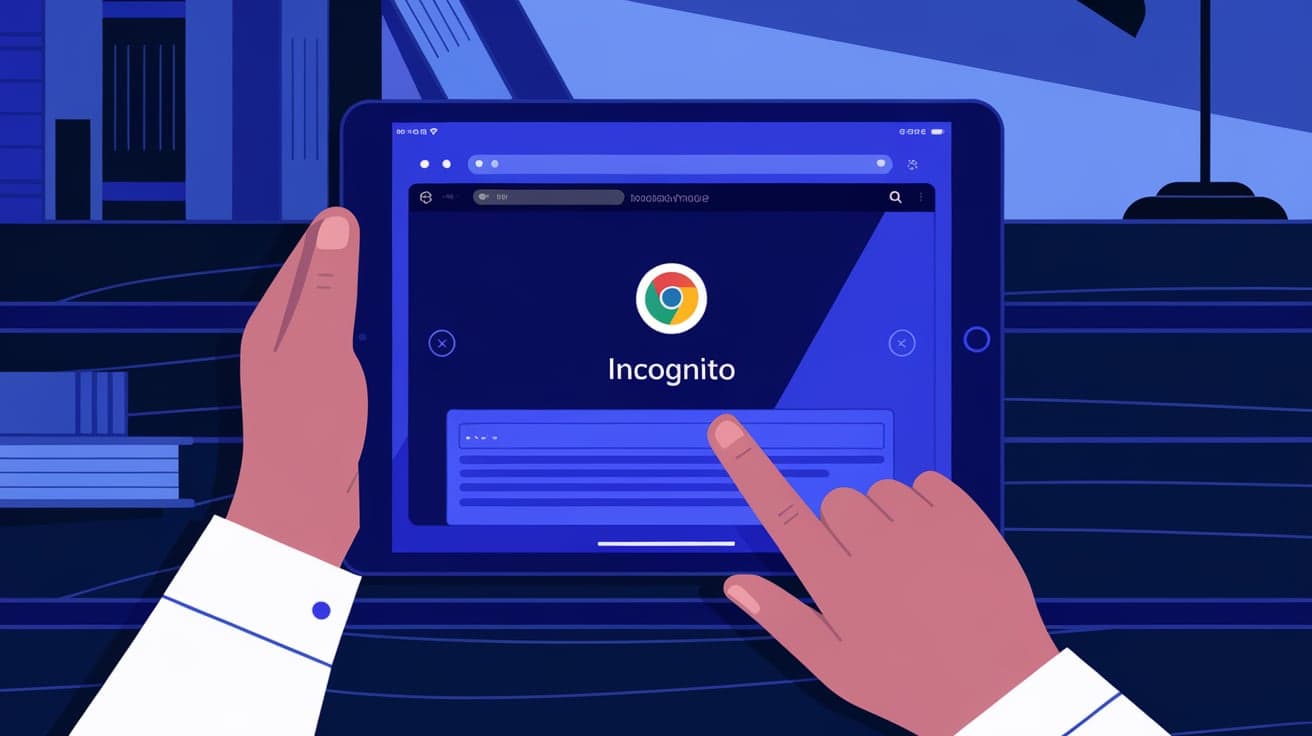
Incognito mode on Chrome can be helpful when you want to browse privately without saving your history, cookies, or search data. But sometimes, switching back to regular browsing on your iPad isn’t as straightforward as you’d like. Maybe you accidentally opened a new incognito tab and aren’t sure how to return to normal browsing, or perhaps you’ve just forgotten the steps to exit incognito mode. Whatever the case, don’t worry—it’s easier than you think.
In this guide, I’ll walk you through simple steps to get out of incognito mode in Chrome on your iPad. Whether you’re new to the browser or just looking for a quick fix, these tips will help you return to regular browsing in no time.
What Is Incognito Mode, and Why Use It?
Before we dive into the solution, let’s quickly touch on what incognito mode does and why you might use it.
Privacy Without Leaving a Trail
When you browse in incognito mode, Chrome doesn’t save your browsing history, cookies, or site data. This is handy for searching sensitive topics or using shared devices.
Temporary Browsing
Incognito mode is great for temporary browsing. For example, if you’re borrowing someone’s iPad or shopping for gifts, it keeps your activities private.
However, incognito mode isn’t foolproof—it won’t hide your activity from websites, your internet provider, or network admins.
Now that we’ve covered the basics, let’s move on to how to exit incognito mode.
How to Exit Incognito Mode on iPad Chrome
Getting out of incognito mode in Chrome on your iPad is simple once you know where to look. Follow these steps to switch back to regular browsing:
Step 1: Open the Tabs View
While in Chrome, look at the bottom-right corner of the screen.
Tap the Tabs icon (it looks like a square overlapping another square).
This will show you all your open tabs, including both regular and incognito tabs.
Step 2: Switch to Regular Tabs
At the top of the Tabs screen, you’ll see two options: Regular and Incognito.
Tap on the Regular tabs option.
You’ll now see your regular browsing tabs or the new tab page if none are open.
Step 3: Close Incognito Tabs (Optional)
If you want to fully exit incognito mode, you can close all incognito tabs:
In the Tabs view, switch to the Incognito section.
Tap the X in the top-left corner of each incognito tab or select Close All Tabs.
Once all incognito tabs are closed, you’ll only be in regular browsing mode.
How to Tell If You’re in Incognito Mode
If you’re unsure whether you’re in incognito mode, here’s how to confirm:
Look at the Chrome interface. Incognito mode has a dark background compared to the lighter theme of regular tabs.
Check the top of the screen for the incognito icon (a spy-like figure with glasses and a hat).
If you see these signs, you’re in incognito mode.
Common Issues and Troubleshooting
Sometimes, you might encounter problems when trying to switch out of incognito mode. Here’s how to fix them.
Can’t Find the Tabs Icon
If the Tabs icon isn’t visible, you might have hidden the toolbar. To bring it back:
Scroll up slightly on the page you’re viewing.
The toolbar, including the Tabs icon, should reappear at the bottom of the screen.
Tabs Won’t Close
If incognito tabs won’t close, try restarting Chrome:
Swipe up from the bottom of your iPad’s screen to view all open apps.
Find Chrome and swipe it upward to close it.
Reopen Chrome and repeat the steps to close incognito tabs.
Incognito Tabs Reopen After Restart
If your incognito tabs keep reopening, disable Chrome’s ability to restore tabs:
Go to the iPad Settings app.
Scroll down and tap Chrome.
Turn off the option for Restore Tabs.
Tips for Using Incognito Mode Effectively
To make the most of incognito mode while avoiding confusion, keep these tips in mind:
Switch Back After Browsing: Always close incognito tabs when you’re done to prevent accidentally staying in private mode.
Don’t Rely on It for Full Privacy: Remember, incognito mode only hides data locally. Your activity may still be visible to your internet provider or network admins.
Use for Specific Tasks: Incognito mode is ideal for quick tasks like checking email on a shared device or avoiding personalized ads during searches.
Summary
Switching out of incognito mode on Chrome for your iPad is a simple process that only takes a few taps. By accessing the Tabs view, switching to regular tabs, and closing any remaining incognito tabs, you can return to normal browsing in seconds.
Remember, incognito mode is a helpful tool for temporary private browsing, but it’s not a substitute for more robust privacy measures. Knowing how to use it effectively—and how to switch back—makes your browsing experience more seamless.
FAQs
How do I know if I’m in incognito mode on Chrome for iPad?
Look for a dark-themed background and the incognito icon (a spy figure with glasses and a hat) at the top of the screen. These indicate that you’re in incognito mode.
Can I close all incognito tabs at once on iPad?
Yes, you can close all incognito tabs by opening the Tabs view, switching to the incognito section, and selecting Close All Tabs.
Why do my incognito tabs reopen when I restart Chrome?
This can happen if Chrome is set to restore tabs. To stop this, go to your iPad’s Settings, find Chrome, and turn off the Restore Tabs option.
Does incognito mode hide my activity completely?
No, incognito mode only prevents Chrome from saving your browsing history, cookies, or site data locally. Your activity may still be visible to your internet provider or network administrator.
Can I use shortcuts to switch out of incognito mode?
Currently, there are no shortcuts to exit incognito mode directly on an iPad. You’ll need to follow the steps to open the Tabs view and switch back to regular browsing manually.
Also read -
how to block adult content on chrome




