
How to Check Chrome Version
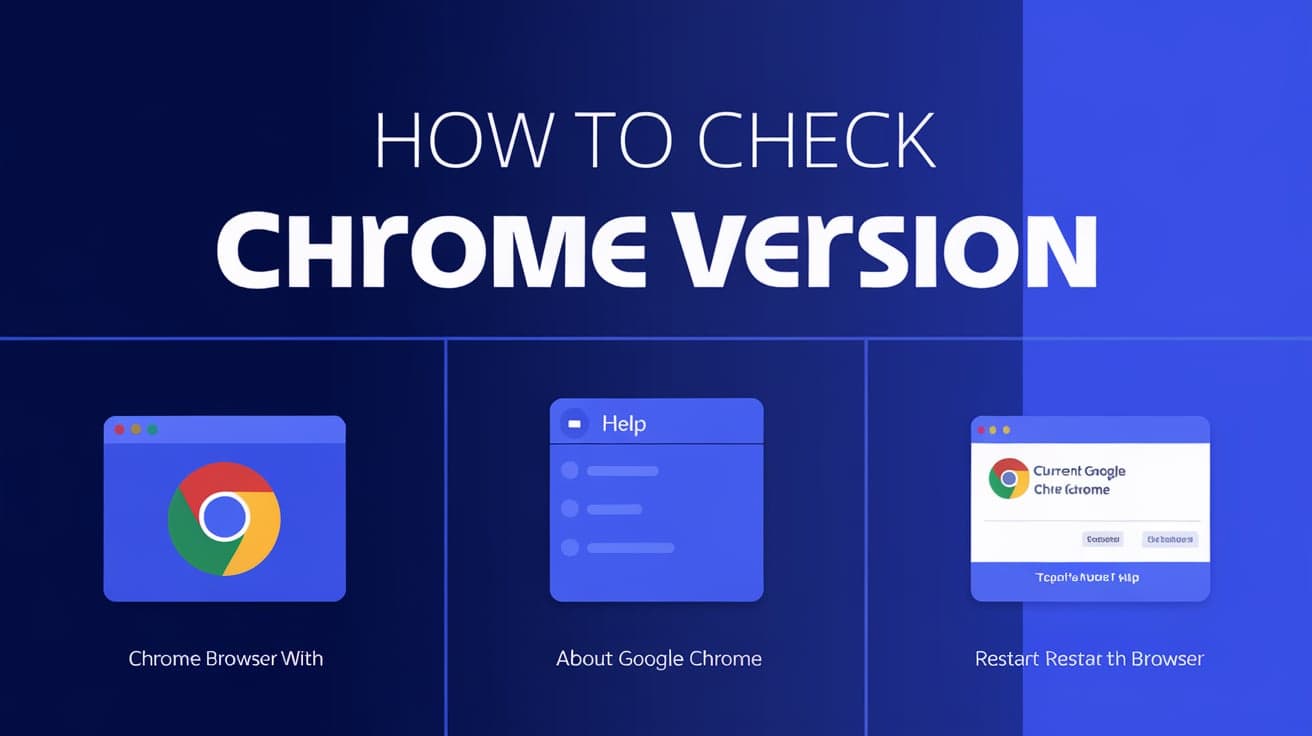
Knowing your Google Chrome version is more important than you might think. The version tells you if you’re using the latest features, receiving security updates, or need an upgrade for compatibility with certain websites or extensions. Checking the version of Chrome on your device is quick and easy.
Whether you’re on a computer, smartphone, or tablet, this guide will show you step-by-step how to find out your Chrome version and why it matters.
Why Knowing Your Chrome Version Is Important
1. Security Updates
Every new Chrome version includes fixes for security vulnerabilities. Using an outdated version increases the risk of malware or phishing attacks.
2. Performance Improvements
Newer versions of Chrome often include performance upgrades, making browsing faster and more efficient.
3. Extension Compatibility
Some extensions require specific Chrome versions to work correctly. Knowing your version helps ensure compatibility.
4. Troubleshooting Issues
If you encounter problems like crashes or slow performance, checking your version can help determine if an update is needed.
How to Check Chrome Version on a Computer
Step 1: Open Chrome
Start by opening the Chrome browser on your computer. Ensure it’s running, as you’ll need to access its settings.
Step 2: Access the About Page
Click the three-dot menu in the top-right corner of the browser.
Hover over Help and select About Google Chrome from the submenu.
Step 3: View the Version
You’ll see the Chrome version displayed at the top of the page, usually in the format XX.X.XXXX.XX.
Step 4: Update if Necessary
If your version is outdated, Chrome will automatically check for updates on this page. If an update is available, click Relaunch to install it.
How to Check Chrome Version on Android
Step 1: Open Chrome
Launch the Chrome app on your Android device.
Step 2: Open Settings
Tap the three-dot menu in the top-right corner of the screen.
Scroll down and select Settings.
Step 3: Find the Version
Scroll down and tap About Chrome or About browser.
Your Chrome version will be displayed at the top of the page.
Step 4: Update via Play Store
To ensure you have the latest version, open the Google Play Store, search for Google Chrome, and check if an update is available.
How to Check Chrome Version on iOS (iPhone and iPad)
Step 1: Open Chrome
Launch the Chrome app on your iPhone or iPad.
Step 2: Access Settings
Tap the three-dot menu in the bottom-right corner.
Scroll down and select Settings.
Step 3: View the Version
Scroll to the bottom and tap About Chrome.
Your version number will appear at the top.
Step 4: Update via App Store
To update Chrome, open the App Store, search for Google Chrome, and tap Update if an update is available.
How to Check Chrome Version on a Chromebook
Step 1: Open Settings
Click the time in the bottom-right corner of the screen.
Select the Settings gear icon from the menu.
Step 2: Navigate to About Chrome OS
In the left-hand menu, click About ChromeOS.
The Chrome version will be displayed under Google Chrome OS.
Step 3: Update Chrome
Click Check for updates to ensure you’re running the latest version.
How to Check Chrome Version Without Opening Chrome
If you can’t open Chrome for some reason, you can still find the version installed on your device:
On Windows
Press Windows + R to open the Run dialog box.
Type
appwiz.cpland hit Enter.Look for Google Chrome in the list of installed programs.
The version number will appear next to it.
On Mac
Open Finder and go to the Applications folder.
Right-click Google Chrome and select Get Info.
The version number will be listed under Version.
Why You Should Keep Chrome Updated
1. Stay Secure
Updating ensures you receive the latest security patches to protect against online threats.
2. Access New Features
Newer versions include enhanced features and tools to improve your browsing experience.
3. Better Compatibility
Up-to-date Chrome works seamlessly with modern websites and extensions.
4. Improved Performance
Updates often include speed and efficiency improvements, reducing crashes and load times.
Troubleshooting Common Issues with Chrome Versions
Problem 1: Chrome Won’t Update
- Fix: Restart your device and try again. If that doesn’t work, uninstall and reinstall Chrome.
Problem 2: Version Page Doesn’t Load
- Fix: Check your internet connection or restart Chrome.
Problem 3: Extensions Not Working
- Fix: Check if your Chrome version supports the extension. Update Chrome if necessary.
Problem 4: Outdated Version After Update
- Fix: Ensure automatic updates are enabled in your device’s settings.
Conclusion
Checking your Google Chrome version is a simple yet essential task to ensure your browser is secure, fast, and fully compatible with modern websites and extensions. Whether you’re on a computer, smartphone, or Chromebook, the steps are straightforward. By regularly updating your browser, you’ll benefit from the latest features and performance improvements while staying protected from online threats. Use this guide to check your version and keep Chrome running smoothly.
FAQs
How do I check the Chrome version on my phone?
Open Chrome, go to Settings > About Chrome, and the version number will appear at the top.
Can I check my Chrome version without opening the browser?
Yes, on Windows, you can check via appwiz.cpl, and on Mac, you can find the version in the Applications folder under Get Info.
Why should I update my Chrome browser?
Updating Chrome ensures you have the latest security features, performance improvements, and compatibility with extensions and websites.
How often should I check for Chrome updates?
Chrome updates automatically, but checking every few weeks ensures you’re using the latest version.
What happens if I don’t update Chrome?
Using an outdated version increases the risk of security vulnerabilities, performance issues, and compatibility problems.
Also read -
how to unblock a website on chrome
how to let chrome access the network using firewall settings




