
How to Change Chrome Startup Page
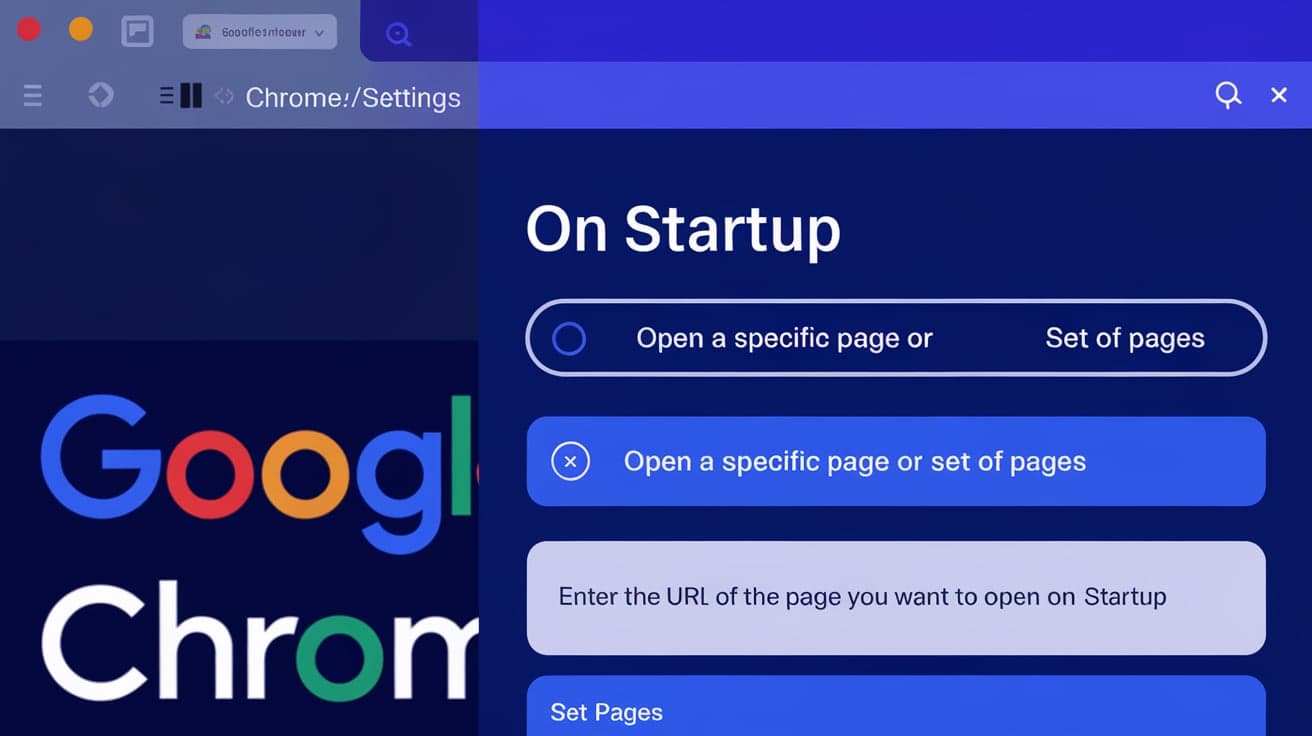
Your Chrome startup page is the first thing you see when you open the browser. It can be a blank tab, a specific website, or even multiple pages, depending on your settings. Customizing this page makes it easier to access your most-used websites or set the tone for a productive browsing session. If you’ve been wondering how to change Chrome’s startup page, you’re in the right place.
In this guide, I’ll show you step-by-step how to customize the Chrome startup page to suit your needs. Whether you want to start with your favorite search engine, a news website, or multiple tabs for work, you’ll find everything you need here. Let’s dive in and get your Chrome setup just the way you like it!
Why Customize Your Chrome Startup Page?
Before we get into the steps, let’s talk about why changing your startup page can be a game-changer.
Faster Access to Favorite Sites
Imagine opening Chrome and immediately landing on the sites you use most—like your email, work dashboard, or news feed. It saves time and gets you straight to what matters.
Improved Productivity
Setting up your startup page with tools or resources you need for work or school can help you focus and avoid distractions.
Personalization
A customized startup page makes browsing feel more personal and tailored to your preferences.
Now that you know why it’s worth doing, let’s get started with the how-to.
How to Change Chrome Startup Page
Chrome gives you three main options for what happens when you open the browser: starting with a new tab, resuming where you left off, or opening specific pages. Here’s how to change these settings.
Step 1: Open Chrome Settings
Launch Chrome on your computer.
Click on the three-dot menu in the top-right corner of the browser.
Select Settings from the dropdown menu.
This will open the Chrome Settings page where you can adjust various preferences.
Step 2: Navigate to Startup Settings
Scroll down to the section labeled On startup.
Here, you’ll see three options:
Open the New Tab page
Continue where you left off
Open a specific page or set of pages
Each option gives you a different experience when you launch Chrome.
Step 3: Choose Your Preferred Option
Option 1: Open the New Tab Page
If you want Chrome to show a blank tab with shortcuts to frequently visited sites and the Google search bar:
Select the Open the New Tab page option.
Close the Settings tab.
Option 2: Continue Where You Left Off
Want Chrome to reopen all tabs from your last session? Choose this option:
Select Continue where you left off.
Chrome will now save your open tabs when you close the browser.
Option 3: Open a Specific Page or Set of Pages
To open a specific website or multiple websites every time you launch Chrome:
Select Open a specific page or set of pages.
Click Add a new page.
Enter the URL of the website you want to open and click Add.
Repeat for additional pages if needed.
Chrome will now open these pages every time you start the browser.
Changing the Startup Page on Mobile Devices
If you’re using Chrome on your phone or tablet, the process is slightly different.
Android
Open Chrome and tap the three-dot menu in the top-right corner.
Select Settings.
Scroll down to Homepage and tap it.
Toggle the Homepage switch on and enter the URL you want as your startup page.
iPhone/iPad
On iOS devices, Chrome doesn’t allow setting a specific startup page. However, you can bookmark your preferred website and access it quickly.
Common Issues and Fixes
Chrome Keeps Resetting the Startup Page
If your startup page resets to default or an unwanted site, it might be due to:
A corrupted Chrome profile.
Malware or a browser hijacker.
How to Fix:
Run a malware scan using a trusted antivirus program.
Reset Chrome settings by going to Settings > Advanced > Reset and clean up.
Startup Page Not Loading Properly
If your chosen website doesn’t load:
Double-check the URL for errors.
Ensure your internet connection is stable.
Tips for a Productive Startup Page
Here are some ideas to make the most out of your startup page:
Set a Custom Dashboard: Use tools like Momentum or start.me for a personalized homepage with tasks, weather, and shortcuts.
Organize with Multiple Tabs: Open tabs for email, news, and work tools to jump right into your day.
Use Chrome Extensions: Some extensions offer customizable startup pages with added features like to-do lists or widgets.
Summary
Customizing your Chrome startup page is a simple yet powerful way to improve your browsing experience. By following the steps in this guide, you can set Chrome to open with a blank tab, pick up where you left off, or load your favorite websites automatically. Whether you’re on a computer or mobile device, these settings give you control over how you start your browsing session.
Take a few minutes to set up your startup page today—you’ll thank yourself every time you open Chrome.
FAQs
How do I reset my Chrome startup page to default?
Go to Settings > On startup, and select Open the New Tab page. This resets Chrome to its default startup behavior.
Can I set multiple startup pages in Chrome?
Yes, you can! Select Open a specific page or set of pages under the On startup section and add multiple URLs. Chrome will open all of them as tabs when you start the browser.
Why does my Chrome startup page keep changing?
This could be due to malware or an extension overriding your settings. Run a malware scan and check your extensions for anything suspicious.
Can I set a different startup page for Chrome on mobile?
On Android, you can set a homepage URL, but iOS doesn’t support this feature. Instead, bookmark your preferred site for quick access.
What’s the difference between a homepage and a startup page in Chrome?
The startup page is what opens when you launch Chrome, while the homepage is the page that opens when you click the Home button in the browser toolbar.
Also read -
how to update chrome extensions




