
How to Cast from Chrome Mobile
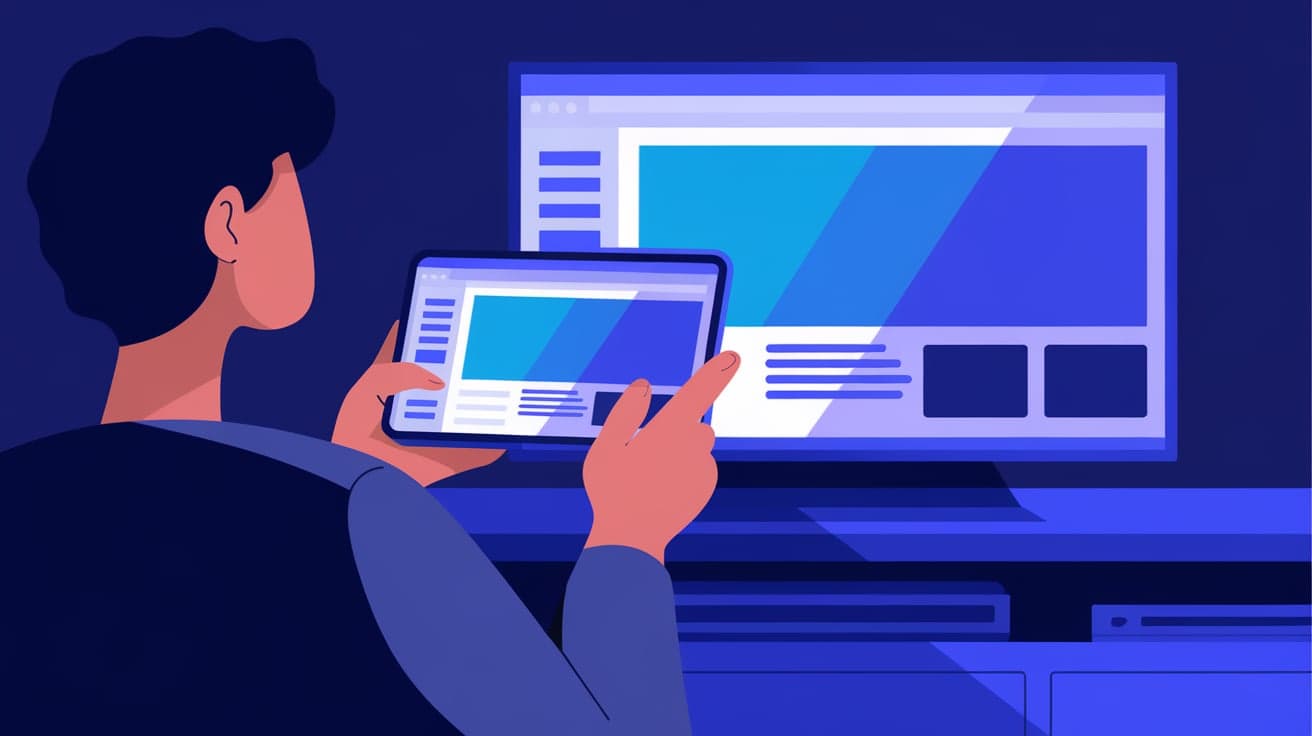
Casting from your mobile Chrome browser can make sharing videos, photos, and even websites easier than ever. Whether you’re hosting a gathering or simply want to enjoy a larger screen experience, casting lets you stream content from your phone to your TV or other supported devices like Chromecast.
This guide will show you how to cast from Chrome Mobile step by step. Whether you’re using Android or iOS, you’ll learn how to connect to your TV, troubleshoot common issues, and make the most out of this handy feature.
Why Use Casting?
Casting offers convenience and versatility when sharing content from your phone to a bigger screen.
Benefits of Casting:
Big Screen Experience: Enjoy movies, videos, or web pages on your TV.
Simple Sharing: Share content with family or friends in a seamless way.
Hands-Free Control: Use your phone as a remote while enjoying the view on a larger screen.
How to Cast from Chrome on Android
Casting from an Android device is straightforward, especially if you have a Chromecast or a TV with built-in casting support.
Steps:
Open Chrome
- Launch the Chrome app on your Android device.
Visit the Page You Want to Cast
- Navigate to the website, video, or content you want to stream.
Access the Menu
- Tap the three-dot menu in the top-right corner of Chrome.
Select “Cast”
- From the dropdown menu, tap Cast.
Choose Your Device
- Chrome will search for available devices. Select your TV or Chromecast from the list.
Start Casting
- The content will appear on your TV screen. You can control playback from your phone.
Note:
Make sure your phone and casting device are connected to the same Wi-Fi network.
How to Cast from Chrome on iOS
If you’re using an iPhone or iPad, the process is slightly different but just as simple.
Steps:
Open Chrome
- Launch Chrome on your iOS device.
Navigate to Your Content
- Go to the website or video you want to stream.
Use the Cast Feature
Tap the Share icon or the three-dot menu, depending on your Chrome version.
Select Cast from the available options.
Connect to Your Device
- Choose your Chromecast or compatible device from the list.
Enjoy on the Big Screen
- Your content will appear on the TV, and you can control it from your phone.
Troubleshooting Common Casting Issues
Sometimes, casting might not work as expected. Here’s how to fix common problems:
Issue 1: Device Not Found
- Solution: Ensure both devices are connected to the same Wi-Fi network. Restart your Chromecast or TV.
Issue 2: Poor Connection or Lag
- Solution: Move closer to your Wi-Fi router, or use a 5 GHz network for better performance.
Issue 3: No Cast Option in Chrome
- Solution: Update Chrome to the latest version and check if your device supports casting.
Best Practices for Casting
Keep Your Devices Updated: Ensure Chrome, your phone, and your casting device have the latest updates.
Optimize Wi-Fi: Use a strong and stable Wi-Fi connection to avoid interruptions.
Close Unnecessary Tabs: Free up resources on your phone by closing unused apps or tabs.
How to Stop Casting
When you’re done casting, it’s easy to disconnect:
Steps:
Tap the Cast icon in Chrome’s menu bar.
Select Disconnect or Stop Casting.
This will return control to your phone and stop streaming content to your TV.
Advanced Casting Tips
Cast Entire Tabs
Some devices let you cast entire tabs, which is useful for presentations or navigating multiple websites.
Cast Local Media
Use Chrome extensions or apps like VLC to stream videos or music stored on your phone.
Multi-Device Casting
If you have multiple casting devices, you can switch between them from the Cast menu.
Summary
Casting from Chrome Mobile is a simple way to bring your favorite content to the big screen. Whether you’re streaming a video, sharing photos, or presenting a webpage, the process is quick and user-friendly.
By following the steps outlined in this guide, you’ll master casting on both Android and iOS. With troubleshooting tips and best practices, you’ll also be prepared to handle any hiccups along the way.
FAQs
Can I cast from Chrome on any device?
You can cast from Chrome on Android and iOS devices, but you’ll need a compatible device like Chromecast or a TV with built-in casting support.
Why is the Cast option missing in Chrome?
Ensure you’re using the latest version of Chrome and that your phone and casting device are connected to the same Wi-Fi network.
Do I need an app to cast from Chrome?
No, the Cast feature is built into Chrome. However, apps like Google Home can enhance your casting experience.
Can I cast offline content?
Yes, you can use third-party apps like VLC or Plex to stream local files to your TV.
Is casting secure?
Yes, as long as you’re on a trusted Wi-Fi network, casting is a secure way to share content.
Also read -
how to disable javascript in chrome




