
How to Allow Location on Chrome
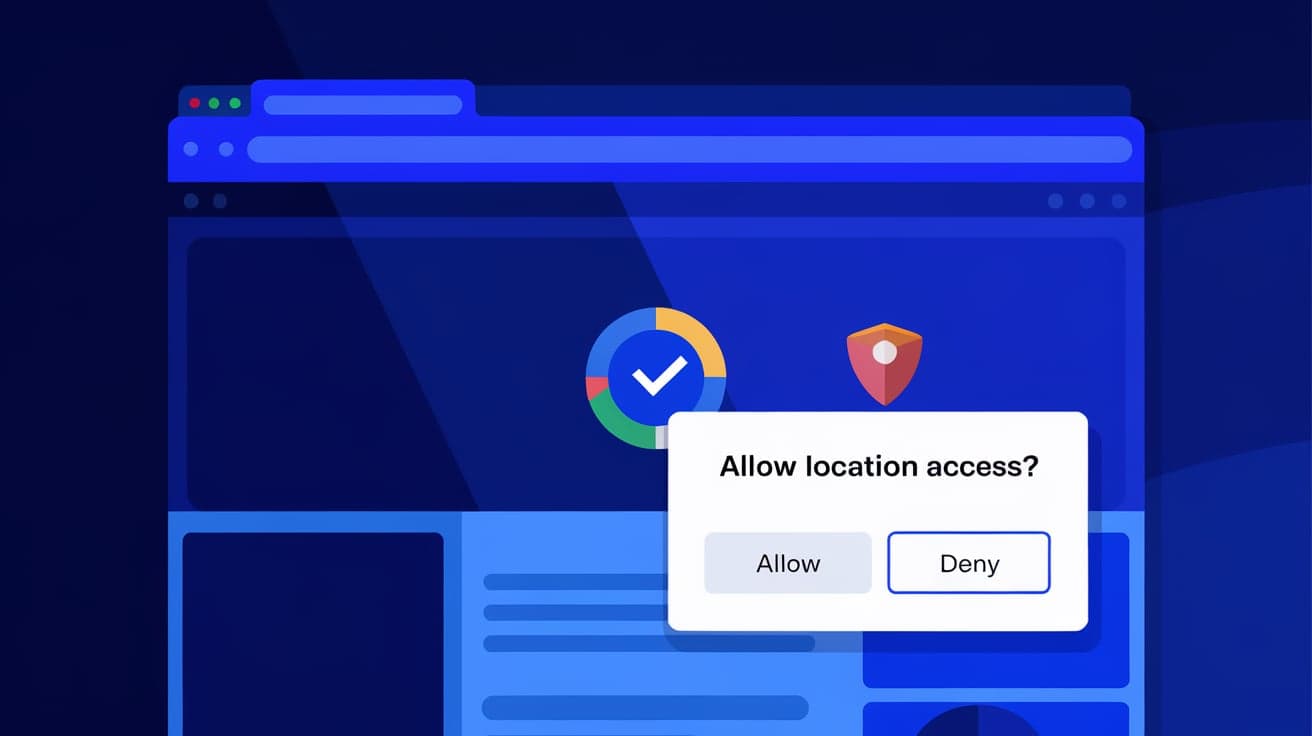
Many websites and apps rely on your location to provide personalized and accurate services. For example, food delivery apps need your address, map services guide you to destinations, and weather sites show local forecasts. If you’re using Google Chrome, enabling location access is easy and ensures these features work seamlessly.
However, some users may hesitate to allow location due to privacy concerns or simply don’t know how to adjust the settings. In this guide, I’ll show you step-by-step how to allow location on Chrome for desktop and mobile. You’ll also learn how to manage permissions, troubleshoot issues, and stay in control of your privacy.
Why Allow Location on Chrome?
Location access can improve your browsing experience by tailoring content to your needs. Here’s why enabling location in Chrome is helpful:
Personalized Services: Websites like Google Maps, Uber, and Yelp work better with precise location data.
Local Information: Get relevant news, weather updates, and events based on your area.
Faster Navigation: Skip manual address entry when using services like food delivery or ridesharing apps.
Improved Search Results: Search engines can provide results specific to your location.
Allowing location access enhances convenience and usability, especially for location-based services.
How to Allow Location on Chrome (Desktop)
If you’re using Chrome on a computer, here’s how to enable location access:
1. Open Chrome Settings
Launch Google Chrome on your computer.
Click the three-dot menu in the top-right corner.
From the dropdown menu, select Settings.
2. Navigate to Privacy and Security
In the Settings menu, scroll down and click Privacy and security on the left-hand side.
Select Site settings from the list.
3. Adjust Location Settings
Under the Permissions section, click Location.
Toggle the switch to Sites can ask for your location. This allows Chrome to prompt you whenever a site requests location access.
4. Grant Location Access to Specific Sites
Visit the website you want to grant location access to.
When prompted, click Allow on the pop-up message asking for your location.
You’ve now enabled location access on Chrome for desktop.
How to Allow Location on Chrome (Mobile)
Enabling location on Chrome for mobile devices is just as simple:
1. Open Chrome Settings
Launch the Chrome app on your smartphone or tablet.
Tap the three-dot menu in the top-right corner.
Select Settings from the menu.
2. Access Site Settings
Scroll down to find Site settings under the Advanced section.
Tap Location.
3. Enable Location Access
Toggle the switch to Ask first or Allowed.
This lets Chrome ask for your permission whenever a site wants to use your location.
4. Allow Location for Specific Sites
Visit the site requiring location access.
When prompted, tap Allow.
Your location settings are now configured for Chrome on mobile.
Managing Location Permissions
You may want to customize which websites can access your location. Chrome makes it easy to manage permissions:
1. View and Edit Permissions
Open Chrome’s Settings > Privacy and security > Site settings > Location.
Under Allowed to see your location, you’ll find a list of websites with location access.
2. Remove or Block Sites
To revoke a site’s access, click the trash icon or select Block next to the site’s name.
This ensures the website cannot use your location in the future.
Customizing permissions helps you stay in control of your privacy while allowing trusted sites to function properly.
Troubleshooting Location Issues
Sometimes, location services might not work as expected. Here’s how to fix common issues:
1. Check Device Location Settings
Ensure location services are enabled on your device:
Windows: Go to Settings > Privacy > Location and turn on location access.
Mac: Open System Preferences > Security & Privacy > Privacy > Location Services and enable Chrome.
Mobile: Go to your phone’s location settings and ensure location access is enabled.
2. Update Chrome
Outdated versions of Chrome can cause glitches:
Click the three-dot menu in Chrome.
Go to Help > About Google Chrome to check for updates.
3. Clear Cache and Cookies
If a site isn’t detecting your location:
Open Settings > Privacy and security > Clear browsing data.
Select Cookies and other site data and Cached images and files, then click Clear data.
4. Disable Extensions
Ad blockers or privacy-focused extensions may interfere with location services. Disable them temporarily to see if the issue resolves.
Staying Safe While Sharing Your Location
While allowing location access improves convenience, it’s essential to protect your privacy:
Only Allow Trusted Sites: Be selective about which websites can access your location.
Revoke Unnecessary Permissions: Regularly review and remove location access for sites you no longer use.
Enable HTTPS Only: Ensure the website uses a secure connection (look for the padlock icon) before sharing location data.
Use Incognito Mode: If you’re concerned about privacy, use Chrome’s Incognito mode to limit data tracking.
Summary
Enabling location on Chrome is a straightforward process that allows websites to provide personalized and location-specific services. Whether you’re on a desktop or mobile device, you can adjust Chrome’s settings to allow or block location access as needed.
By following this guide, you can easily enable, manage, and troubleshoot location permissions in Chrome while maintaining control over your privacy. Whether it’s finding nearby restaurants or getting accurate weather updates, location services can significantly enhance your browsing experience.
FAQs
How do I enable location on Chrome for a specific site?
Visit the site, wait for the location prompt, and click Allow. If no prompt appears, go to Settings > Privacy and security > Site settings > Location and manually enable location access for that site.
Why is Chrome not detecting my location?
Ensure location services are enabled on your device, Chrome is updated, and there are no interfering extensions. Clearing cache and cookies can also help.
Can I allow location for some sites and block it for others?
Yes, Chrome allows you to customize permissions. Go to Settings > Privacy and security > Site settings > Location and manage the list of allowed and blocked sites.
Is it safe to allow location on Chrome?
Yes, as long as you grant access only to trusted websites and review permissions regularly. Always ensure the site uses HTTPS for added security.
How do I stop Chrome from asking for location access?
Go to Settings > Privacy and security > Site settings > Location and toggle off the option to allow sites to ask for location.
Also read -
how to set chrome as default browser in windows 11




