
How Do I Turn On Chrome OS Developer Mode?
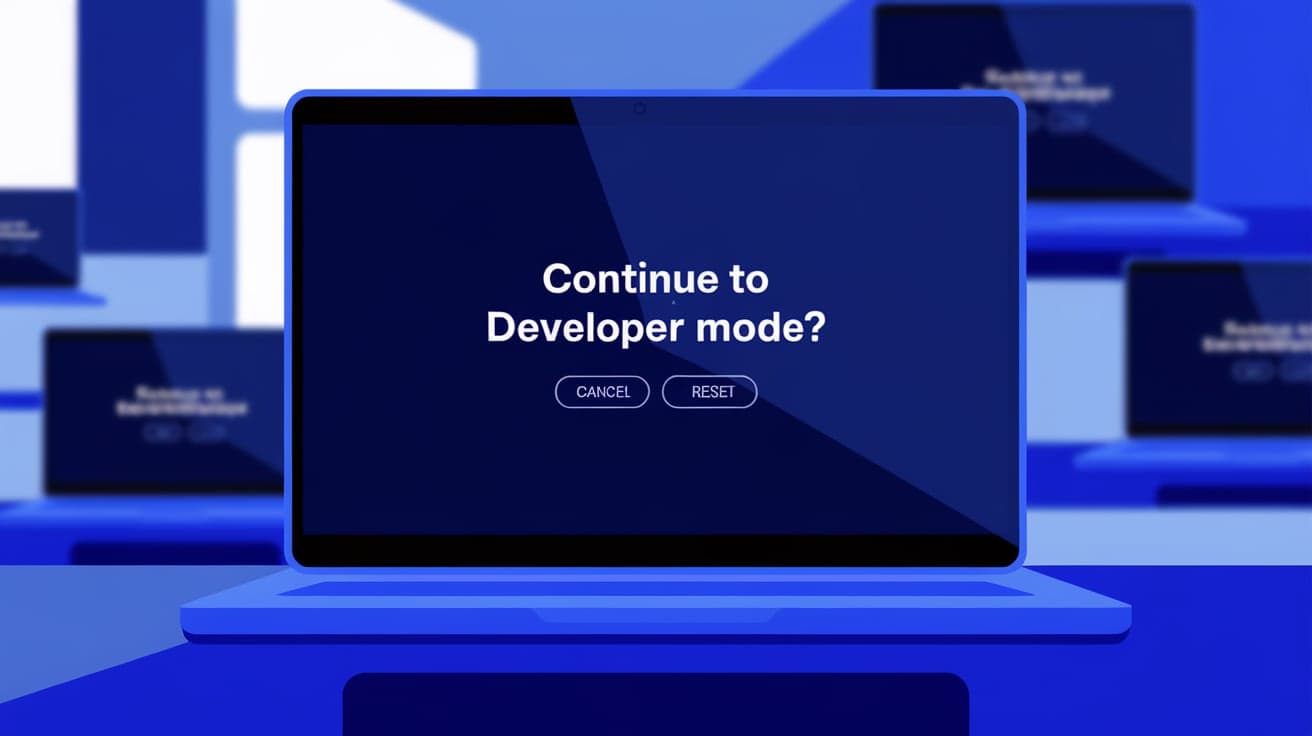
Chromebooks are known for being simple, secure, and easy to use. However, if you’re someone who loves experimenting, tweaking settings, or using advanced tools, Chrome OS Developer Mode is your gateway to unlocking a Chromebook’s full potential. Developer Mode allows you to install custom software, enable Linux commands, or even install a different operating system altogether.
Turning on Developer Mode is not complicated, but it does come with some risks and important considerations. This guide will walk you through the entire process step by step, explain why you might want to enable Developer Mode, and provide tips for staying secure.
What Is Chrome OS Developer Mode?
Developer Mode is like a hidden door on your Chromebook. By default, Chrome OS runs in a secure, locked-down state that prevents you from making system-level changes. This keeps your device fast and safe.
When you enable Developer Mode, you gain access to features like:
Running Linux commands through a terminal.
Installing third-party apps not available in the Chrome Web Store.
Writing and testing custom code.
Using alternative operating systems like Linux.
While Developer Mode opens up many possibilities, it also removes some of Chrome OS’s built-in security features. This is why it’s important to understand the risks before enabling it.
Things to Consider Before Enabling Developer Mode
Before diving in, here are a few things to keep in mind:
Factory Reset: Enabling Developer Mode will erase all the data on your Chromebook. This includes files, apps, and user settings. Be sure to back up anything important before you begin.
Security Risks: Turning on Developer Mode disables certain security features, such as Verified Boot. This makes your Chromebook more vulnerable to malware.
Warranty Concerns: Some manufacturers might void your warranty if you enable Developer Mode. Check your Chromebook’s warranty policy if you’re unsure.
Frequent Warnings: Every time you turn on your Chromebook, you’ll see a warning screen about Developer Mode.
If you’re comfortable with these trade-offs, let’s move on to enabling Developer Mode.
Step-by-Step Guide to Enabling Chrome OS Developer Mode
Follow these steps to turn on Developer Mode on your Chromebook:
1. Back Up Your Data
Since enabling Developer Mode will wipe your device, back up any important files to Google Drive, an external hard drive, or a USB stick.
2. Enter Recovery Mode
Turn off your Chromebook.
Press and hold the Esc key, Refresh key, and Power button simultaneously.
Release the keys when a recovery screen appears. It will display a message like “Chrome OS is missing or damaged.” Don’t worry—this is normal.
3. Enable Developer Mode
On the recovery screen, press Ctrl + D on your keyboard.
A prompt will ask if you want to turn off OS verification. Press Enter to confirm.
Your Chromebook will reboot and start transitioning to Developer Mode. This process can take several minutes, so be patient.
4. Complete the Setup
After the reboot, you’ll see a screen warning you that OS verification is off. To continue:
Press Ctrl + D to bypass the warning screen.
The Chromebook will finish enabling Developer Mode, which may take another few minutes.
Once it’s done, your Chromebook will boot into Developer Mode, and you’ll be able to set up your account again.
What Can You Do in Developer Mode?
Now that Developer Mode is enabled, you can explore several advanced features:
1. Access the Linux Terminal
Press Ctrl + Alt + T to open the Crosh terminal. From here, you can run Linux commands or install Linux-based apps.
2. Install Third-Party Apps
Developer Mode allows you to install apps outside the Chrome Web Store. For instance, you can sideload APK files for Android apps.
3. Modify System Files
You can access and edit Chrome OS’s system files to customize your experience. Be cautious, as improper changes can cause errors.
4. Dual-Boot Linux
Install a Linux distribution like Ubuntu or Debian alongside Chrome OS for a more versatile computing experience. Tools like Crouton make this process easier.
How to Turn Off Developer Mode
If you decide Developer Mode isn’t for you, turning it off is simple:
Restart your Chromebook.
At the Developer Mode warning screen, press the Space bar.
Follow the prompts to re-enable OS verification.
This will reset your Chromebook to its original state, erasing all data once again.
Pros and Cons of Chrome OS Developer Mode
Here’s a quick summary of the advantages and disadvantages of using Developer Mode:
Pros:
Unlock advanced features like Linux commands and custom app installations.
Gain full control over your device’s operating system.
Experiment with coding, development tools, or alternative OS options.
Cons:
Increased security risks.
Data loss during the setup process.
Annoying warning screen at startup.
Potential warranty issues.
Staying Secure in Developer Mode
Since Developer Mode removes some security features, follow these tips to stay safe:
Avoid Suspicious Apps: Only install apps and files from trusted sources.
Keep Your Chromebook Updated: Regular updates help patch security vulnerabilities.
Use Antivirus Tools: Consider installing antivirus software to protect against malware.
Back Up Regularly: Save important files frequently to minimize data loss in case of an issue.
Summary
Turning on Chrome OS Developer Mode gives you the freedom to explore advanced features, customize your Chromebook, and even experiment with alternative operating systems. While it’s a powerful tool for tech enthusiasts and developers, it’s not without risks. Enabling Developer Mode erases your data and reduces built-in security protections, so it’s important to weigh the pros and cons before proceeding.
If you’re ready to dive into the world of Developer Mode, follow the step-by-step guide outlined above. Just remember to back up your files and stay cautious while exploring your Chromebook’s new capabilities.
FAQs
How do I enable Developer Mode on a Chromebook?
Press Esc + Refresh + Power to enter recovery mode, then press Ctrl + D to enable Developer Mode.
Will enabling Developer Mode erase my data?
Yes, enabling Developer Mode performs a factory reset on your Chromebook, so back up your data before proceeding.
Is it safe to use Developer Mode on a Chromebook?
While Developer Mode offers great features, it disables certain security protections. Be cautious about what apps you install and files you download.
Can I turn off Developer Mode later?
Yes, you can disable Developer Mode by restarting your Chromebook and pressing the Space bar at the warning screen.
Does enabling Developer Mode void my Chromebook’s warranty?
This depends on your manufacturer’s policy. Check your warranty details to confirm.
Also read -
how to clear cache on mac chrome




